Introduction
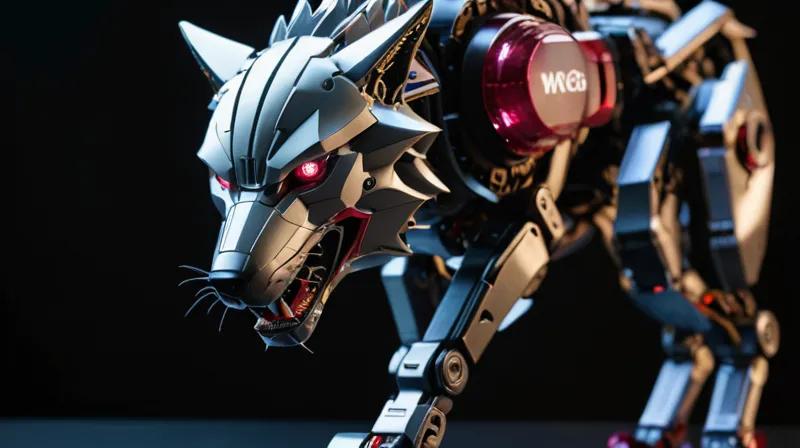
In the rural hills of Hokkaido, Japan, a mechanical wolf named 'Monster Wolf' is making headlines for its surprisingly effective scarecrow capabilities. While the real Monster Wolf uses advanced robotics and sensors, we can build a simplified version using Raspberry Pi and basic electronics that demonstrates the core concepts behind such autonomous machines. This tutorial will guide you through creating a programmable scarecrow robot that uses LED eyes and basic motion detection to simulate the behavior of the real robot.
Prerequisites
To follow this tutorial, you'll need:
- Raspberry Pi (any model with GPIO pins, preferably Pi 3 or 4)
- LEDs (red, 2-3 pieces)
- Resistors (220 ohm, 3 pieces)
- Pi Camera module (or any motion sensor like HC-SR501)
- Breadboard and jumper wires
- Power supply (5V USB adapter)
- Basic understanding of Python programming
Step-by-Step Instructions
Step 1: Set Up Your Raspberry Pi
First, ensure your Raspberry Pi is properly configured with the latest Raspberry Pi OS. Enable the camera interface and GPIO access through the raspi-config tool:
sudo raspi-config
Select 'Interfacing Options' → 'Camera' → 'Enable'. Then go to 'Advanced Options' → 'SSH' → 'Enable' to access your Pi remotely.
Step 2: Wire Up the LED Eyes
The red LED eyes are the visual centerpiece of our robot. Connect each LED to a GPIO pin with a 220 ohm resistor in series to prevent damage:
- Connect the anode (long leg) of each LED to GPIO pin 18, 19, and 20
- Connect the cathode (short leg) of each LED to ground (pin 6)
- Insert 220 ohm resistors in series with each LED
This wiring configuration allows us to control the LED eyes independently, creating a more dynamic effect than a single light.
Step 3: Install Required Libraries
Install the necessary Python libraries for GPIO control and camera access:
sudo apt update
sudo apt install python3-rpi.gpio
We'll also need the picamera library for motion detection:
pip3 install picamera
These libraries give us the ability to control hardware components and process visual data from our camera.
Step 4: Create the Main Control Script
Create a Python script called scarecrow_robot.py to control the LED behavior:
import RPi.GPIO as GPIO
import time
import picamera

# Set up GPIO
GPIO.setmode(GPIO.BCM)
led_pins = [18, 19, 20]
for pin in led_pins:
    GPIO.setup(pin, GPIO.OUT)

# Initialize camera
camera = picamera.PiCamera()
camera.resolution = (640, 480)
camera.framerate = 30

# Function to simulate wolf eyes
def wolf_eyes(pattern):
    for i, pin in enumerate(led_pins):
        GPIO.output(pin, GPIO.HIGH if pattern[i] else GPIO.LOW)
    time.sleep(0.5)

# Main loop
try:
    while True:
        # Simulate eye behavior
        wolf_eyes([1, 0, 1])  # Alternate eyes
        time.sleep(1)
        wolf_eyes([0, 1, 0])  # Middle eye
        time.sleep(1)
        wolf_eyes([1, 1, 1])  # All eyes
        time.sleep(2)
        wolf_eyes([0, 0, 0])  # All eyes off
        time.sleep(1)

except KeyboardInterrupt:
    GPIO.cleanup()
This script demonstrates how we can create different eye patterns to simulate the wolf's behavior. The pattern changes create a more lifelike effect.
Step 5: Add Motion Detection
To make our scarecrow more realistic, we'll integrate motion detection:
import RPi.GPIO as GPIO
import time
import picamera

# Set up GPIO
GPIO.setmode(GPIO.BCM)
led_pins = [18, 19, 20]
for pin in led_pins:
    GPIO.setup(pin, GPIO.OUT)

# Initialize camera
camera = picamera.PiCamera()
camera.resolution = (640, 480)
camera.framerate = 30

# Function to simulate wolf eyes
def wolf_eyes(pattern):
    for i, pin in enumerate(led_pins):
        GPIO.output(pin, GPIO.HIGH if pattern[i] else GPIO.LOW)
    time.sleep(0.5)

# Motion detection function
def detect_motion():
    # Simple motion detection using camera
    # In a real implementation, you'd use a dedicated sensor
    print("Detecting motion...")
    return True  # Simplified for this tutorial

# Main loop
try:
    while True:
        if detect_motion():
            wolf_eyes([1, 1, 1])  # All eyes on when motion detected
            time.sleep(2)
            wolf_eyes([0, 0, 0])  # All eyes off
        else:
            wolf_eyes([1, 0, 1])  # Normal pattern
            time.sleep(1)
            wolf_eyes([0, 1, 0])  # Normal pattern
            time.sleep(1)

except KeyboardInterrupt:
    GPIO.cleanup()
This enhancement allows the robot to respond to motion, simulating the real Monster Wolf's behavior of reacting to intruders.
Step 6: Test and Refine
Run your script to test the LED behavior:
python3 scarecrow_robot.py
Observe how the eyes change patterns and respond to motion. You can modify the timing and patterns to create different behaviors. For a more advanced implementation, consider adding a servo motor to make the head turn, or using a more sophisticated motion sensor.
Summary
Creating a robot scarecrow like Japan's Monster Wolf demonstrates how basic electronics and programming can simulate complex autonomous behaviors. This project combines hardware control with software logic to create an interactive device. While our version is simplified, it introduces core concepts used in real robotics: sensor integration, LED control, and responsive behavior. The skills learned here can be applied to more advanced robotics projects, including autonomous vehicles, security systems, or even full-scale robotic animals.