Introduction
In today's world of personalized health, technology is revolutionizing how we approach wellness. From wearable devices that track our biometrics to AI-powered health apps that provide customized recommendations, the landscape of personal health management is rapidly evolving. This tutorial will guide you through creating a simple personalized health dashboard using Python and web technologies, helping you understand how these systems work and how you can start building your own health tracking solutions.
This hands-on project will teach you how to collect, process, and visualize health data in real-time, giving you insight into how personalized health systems work behind the scenes.
Prerequisites
Before starting this tutorial, you'll need:
- A computer with internet access
- Basic understanding of Python programming
- Python 3.6 or higher installed on your system
- Basic knowledge of HTML and CSS
- Some familiarity with web development concepts
Step-by-Step Instructions
1. Setting up Your Development Environment
The first step is to create a clean development environment for our health dashboard project. We'll need to install the necessary Python packages that will help us process data and create our web interface.
pip install flask pandas numpy matplotlibWhy this step? These packages are essential for our project: Flask for creating the web server, pandas for data manipulation, numpy for numerical operations, and matplotlib for data visualization.
2. Creating the Health Data Generator
Since we don't have real health data, we'll create a mock data generator that simulates health metrics like heart rate, steps, and sleep quality. This will help us understand how real health systems work.
import pandas as pd
import numpy as np
import random
from datetime import datetime, timedelta

def generate_health_data(days=7):
    data = []
    start_date = datetime.now() - timedelta(days=days)

    for i in range(days):
        date = start_date + timedelta(days=i)
        data.append({
            'date': date.strftime('%Y-%m-%d'),
            'heart_rate': random.randint(60, 100),
            'steps': random.randint(3000, 15000),
            'sleep_hours': round(random.uniform(5, 9), 1),
            'stress_level': random.randint(1, 10)
        })

    return pd.DataFrame(data)

# Generate sample data
data = generate_health_data(7)
print(data.head())
Why this step? This simulates how health systems collect data from various sources like fitness trackers, medical devices, or user inputs. Understanding data generation is crucial before we move to visualization.
3. Building the Web Dashboard
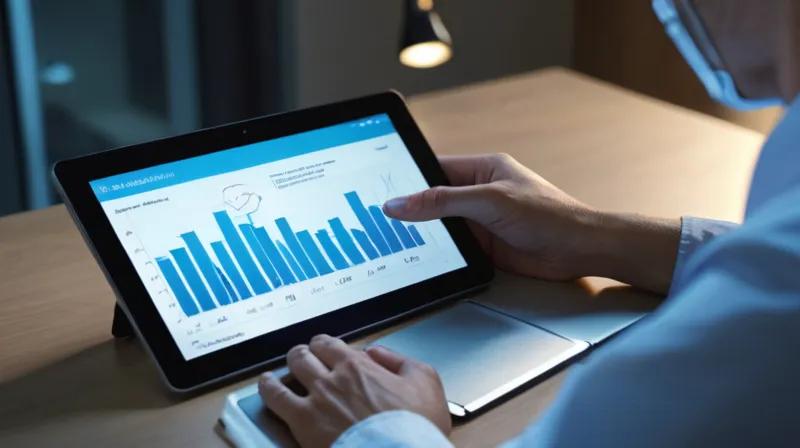
Now we'll create a web interface using Flask that will display our health data in an easy-to-understand format. This is similar to how personalized health platforms present information to users.
from flask import Flask, render_template, jsonify
import json

app = Flask(__name__)

@app.route('/')
def index():
    return render_template('dashboard.html')

@app.route('/api/health_data')
def get_health_data():
    data = generate_health_data(7)
    return jsonify(data.to_dict('records'))

if __name__ == '__main__':
    app.run(debug=True)
Why this step? This creates the foundation of a web-based health dashboard that users can access from their browsers, mimicking how real personalized health platforms work.
4. Creating the HTML Template
We need to create an HTML template that will display our health data in charts and tables. This is how users interact with their personalized health information.
<!DOCTYPE html>
<html>
<head>
    <title>Personalized Health Dashboard</title>
    <script src="https://cdn.jsdelivr.net/npm/chart.js"></script>
    <style>
        body { font-family: Arial, sans-serif; margin: 20px; }
        .chart-container { width: 45%; display: inline-block; margin: 10px; }
        table { border-collapse: collapse; width: 100%; }
        th, td { border: 1px solid #ddd; padding: 8px; text-align: left; }
        th { background-color: #f2f2f2; }
    </style>
</head>
<body>
    <h1>Personalized Health Dashboard</h1>

    <div class="chart-container">
        <canvas id="heartRateChart"></canvas>
    </div>

    <div class="chart-container">
        <canvas id="stepsChart"></canvas>
    </div>

    <h2>Health Data Table</h2>
    <table id="healthTable">
        <thead>
            <tr>
                <th>Date</th>
                <th>Heart Rate</th>
                <th>Steps</th>
                <th>Sleep Hours</th>
                <th>Stress Level</th>
            </tr>
        </thead>
        <tbody>
        </tbody>
    </table>

    <script>
        // Fetch data and update charts
        fetch('/api/health_data')
            .then(response => response.json())
            .then(data => {
                updateCharts(data);
                updateTable(data);
            });

        function updateCharts(data) {
            // Heart rate chart
            const ctx1 = document.getElementById('heartRateChart').getContext('2d');
            new Chart(ctx1, {
                type: 'line',
                data: {
                    labels: data.map(d => d.date),
                    datasets: [{
                        label: 'Heart Rate',
                        data: data.map(d => d.heart_rate),
                        borderColor: 'rgb(255, 99, 132)',
                        fill: false
                    }]
                }
            });

            // Steps chart
            const ctx2 = document.getElementById('stepsChart').getContext('2d');
            new Chart(ctx2, {
                type: 'bar',
                data: {
                    labels: data.map(d => d.date),
                    datasets: [{
                        label: 'Steps',
                        data: data.map(d => d.steps),
                        backgroundColor: 'rgb(54, 162, 235)'
                    }]
                }
            });
        }

        function updateTable(data) {
            const tbody = document.querySelector('#healthTable tbody');
            tbody.innerHTML = '';

            data.forEach(row => {
                const tr = document.createElement('tr');
                tr.innerHTML = `
                    <td>${row.date}</td>
                    <td>${row.heart_rate}</td>
                    <td>${row.steps}</td>
                    <td>${row.sleep_hours}</td>
                    <td>${row.stress_level}</td>
                `;
                tbody.appendChild(tr);
            });
        }
    </script>
</body>
</html>
Why this step? This creates a user-friendly interface that displays health data in multiple formats (charts and tables), which is exactly how personalized health dashboards work to help users understand their health patterns.
5. Running Your Health Dashboard
With all components in place, we can now run our personalized health dashboard to see how it works.
python app.pyThen open your web browser and navigate to http://localhost:5000. You should see your personalized health dashboard with mock data.
Why this step? Running the application demonstrates how the different components work together to create a functional health dashboard, similar to what you might see in real personalized health systems.
6. Enhancing Your Dashboard
Now that you have a basic dashboard, you can enhance it by adding features like:
- User input forms for manual data entry
- Health recommendations based on data patterns
- Integration with real health APIs
- Mobile-responsive design
For example, to add a simple recommendation system:
def get_health_recommendations(data):
    avg_heart_rate = data['heart_rate'].mean()
    avg_steps = data['steps'].mean()
    avg_sleep = data['sleep_hours'].mean()

    recommendations = []
    if avg_heart_rate > 85:
        recommendations.append("Your heart rate is elevated. Consider stress reduction techniques.")
    if avg_steps < 5000:
        recommendations.append("Try to increase your daily step count for better cardiovascular health.")
    if avg_sleep < 7:
        recommendations.append("Aim for 7-9 hours of sleep for optimal health.")

    return recommendations
Why this step? Adding recommendations shows how personalized health systems go beyond just displaying data—they provide actionable insights based on analysis of individual health patterns.
Summary
In this tutorial, you've learned how to build a basic personalized health dashboard using Python and web technologies. You've created a mock data generator, built a web interface with Flask, and implemented data visualization using Chart.js. This hands-on experience gives you insight into how personalized health systems work, from data collection to user presentation.
While this is a simplified version, real personalized health platforms involve much more sophisticated data processing, machine learning algorithms, and integration with various health devices. However, this foundation gives you the understanding needed to explore more advanced concepts in personalized health technology.