Introduction
In the rapidly evolving world of AI hardware, cooling systems are becoming increasingly critical as computing power grows. Companies like Iceotope are pioneering precision liquid cooling solutions to address the heat challenges that arise with high-density AI hardware. In this tutorial, you'll learn how to set up and monitor a basic liquid cooling system using Raspberry Pi and sensors - a foundational approach to understanding the technology behind companies like Iceotope.
This tutorial will teach you how to build a simple liquid cooling monitoring system that can help you understand how cooling systems work in high-performance computing environments.
Prerequisites
Before starting this tutorial, you'll need the following:
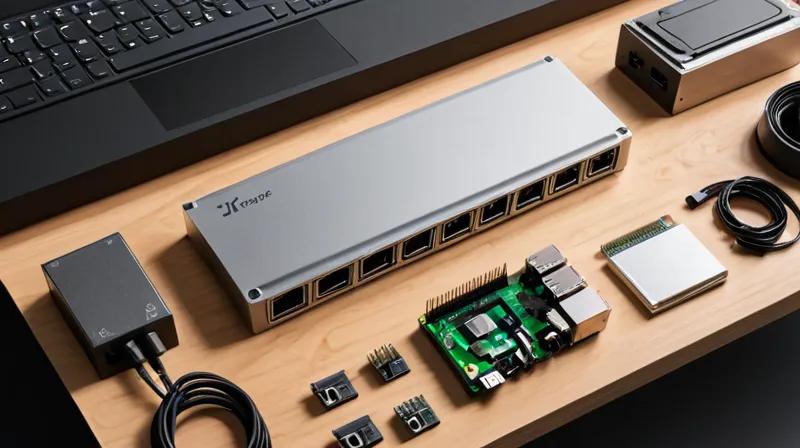
- A Raspberry Pi (any model with GPIO pins will work, but Pi 4 recommended)
- A temperature sensor (DS18B20 is recommended for this tutorial)
- Basic electronic components: breadboard, jumper wires, 4.7kΩ resistor
- Python 3 installed on your Raspberry Pi
- Basic understanding of electronics and programming concepts
Step-by-Step Instructions
1. Set Up Your Raspberry Pi
First, ensure your Raspberry Pi is running the latest version of Raspberry Pi OS. Connect to your Pi via SSH or desktop and update your system:
sudo apt update
sudo apt upgrade
This ensures you have the latest packages and security updates for your system.
2. Enable 1-Wire Interface
The DS18B20 temperature sensor uses the 1-Wire protocol. Enable this interface on your Raspberry Pi:
sudo raspi-configNavigate to Interfacing Options → 1-Wire → Enable. Reboot your Pi after enabling this interface.
3. Connect the Temperature Sensor
Connect your DS18B20 sensor to the Raspberry Pi as follows:
- VDD (red wire) → 3.3V pin (Pin 1)
- GND (black wire) → Ground pin (Pin 6)
- DATA (yellow wire) → GPIO 4 (Pin 7)
- 4.7kΩ resistor between VDD and DATA pins
This wiring setup allows the sensor to communicate with your Raspberry Pi using the 1-Wire protocol.
4. Install Required Libraries
Install the necessary Python libraries for sensor reading:
pip3 install w1thermsensorThis library makes it easy to read temperature data from DS18B20 sensors.
5. Test Sensor Reading
Create a simple Python script to test your temperature sensor:
import time
from w1thermsensor import W1ThermSensor

sensor = W1ThermSensor()

while True:
    temperature = sensor.get_temperature()
    print(f"Temperature: {temperature:.2f}°C")
    time.sleep(1)
Run this script to verify your sensor is working correctly. You should see temperature readings update every second.
6. Build a Basic Cooling System Simulation
Now, let's simulate a cooling system that could be part of a larger liquid cooling setup. Create a script that simulates fan control based on temperature:
import time
from w1thermsensor import W1ThermSensor

sensor = W1ThermSensor()

# Simulate fan control
fan_on = False

while True:
    temperature = sensor.get_temperature()

    if temperature > 30 and not fan_on:
        print(f"Temperature: {temperature:.2f}°C - Turning fan ON")
        fan_on = True
    elif temperature < 25 and fan_on:
        print(f"Temperature: {temperature:.2f}°C - Turning fan OFF")
        fan_on = False

    time.sleep(5)
This script mimics how a real cooling system might turn on a fan when temperatures exceed a threshold, similar to what Iceotope's precision cooling systems might do in AI hardware.
7. Add Data Logging
Enhance your system by logging temperature data to a file:
import time
from w1thermsensor import W1ThermSensor
import datetime

sensor = W1ThermSensor()

with open("cooling_log.txt", "w") as log_file:
    log_file.write("Timestamp,Temperature (°C)\n")

    for i in range(10):  # Log 10 readings
        temperature = sensor.get_temperature()
        timestamp = datetime.datetime.now().strftime("%Y-%m-%d %H:%M:%S")
        log_file.write(f"{timestamp},{temperature:.2f}\n")
        print(f"Logged: {timestamp}, {temperature:.2f}°C")
        time.sleep(2)
This logging functionality is essential for monitoring cooling performance over time, just like how data centers track cooling efficiency.
8. Create a Web Dashboard
For a more advanced approach, create a simple web dashboard to display your cooling data:
from flask import Flask, render_template_string
import time
from w1thermsensor import W1ThermSensor

app = Flask(__name__)
sensor = W1ThermSensor()

@app.route('/')
def dashboard():
    temperature = sensor.get_temperature()
    html = '''
    <html>
    <head><title>AI Cooling Dashboard</title></head>
    <body>
        <h1>AI Cooling System</h1>
        <p>Current Temperature: {{temp}}°C</p>
    </body>
    </html>'''
    return render_template_string(html, temp=temperature)

if __name__ == '__main__':
    app.run(host='0.0.0.0', port=8080)
This web interface allows you to monitor your cooling system remotely, similar to how data centers monitor their cooling infrastructure.
Summary
In this tutorial, you've learned how to set up a basic liquid cooling monitoring system using Raspberry Pi and temperature sensors. This foundational knowledge helps understand the principles behind precision cooling solutions like those developed by Iceotope. You've learned to:
- Set up a Raspberry Pi with 1-Wire interface
- Connect and read data from a DS18B20 temperature sensor
- Simulate fan control based on temperature readings
- Log temperature data for analysis
- Create a simple web dashboard for monitoring
These skills provide a starting point for understanding the complex cooling systems that are essential for high-performance AI hardware. As AI computing continues to advance, the importance of efficient cooling solutions like those developed by Iceotope will only increase.