Introduction
Microsoft's Windows 11 rollout has been met with strict hardware requirements that prevent many older Windows 10 devices from upgrading. While this is intended to ensure optimal performance, it leaves many users stuck with outdated systems. This tutorial will guide you through the process of bypassing these compatibility checks to upgrade your Windows 10 PC to Windows 11, using a combination of registry modifications and command-line tools. This approach works for most devices that meet the minimum hardware requirements but fail the compatibility check.
Prerequisites
- A Windows 10 PC that meets the minimum hardware requirements for Windows 11 (TPM 2.0, Secure Boot, 64-bit processor)
- Administrator privileges on the PC
- Windows 10 version 21H2 or later
- Internet connection for downloading tools
- Backup of important data (recommended)
Step-by-Step Instructions
Step 1: Verify Your System Requirements
Why: Before making any changes, confirm your PC meets the minimum hardware requirements
Open Command Prompt as Administrator and run:
systeminfo | findstr /C:"System Type"
systeminfo | findstr /C:"TPM"
Ensure your system shows:
- 64-bit operating system
- TPM 2.0 enabled
- Secure Boot enabled
Step 2: Download and Install Windows 11 Installation Assistant
Why: This tool provides the official upgrade path that we'll modify
Visit the official Microsoft website and download the Windows 11 Installation Assistant. Run the installer as Administrator. This tool will be used to trigger the upgrade process, but we'll modify its behavior to bypass compatibility checks.
Step 3: Create a Registry Modification Script
Why: We need to modify the Windows registry to disable compatibility checks
Create a new text file named disable_compatibility_check.reg with the following content:
Windows Registry Editor Version 5.00

[HKEY_LOCAL_MACHINE\SYSTEM\Setup\LabConfig]
"BypassUpgradeCheck"=dword:00000001
Save this file and double-click it to apply the registry changes. This registry key tells Windows Setup to bypass the upgrade compatibility check.
Step 4: Modify Windows Update Settings
Why: Ensuring Windows Update recognizes the upgrade path
Open Command Prompt as Administrator and run:
reg add "HKLM\SOFTWARE\Policies\Microsoft\Windows\WindowsUpdate" /v "AllowWindowsUpdatePolicy" /t REG_DWORD /d 1 /f
This command enables Windows Update policies, which helps ensure your system properly recognizes the upgrade path.
Step 5: Trigger the Upgrade Process
Why: Starting the actual upgrade process through the installation assistant
Run the Windows 11 Installation Assistant as Administrator. When prompted, select "Update this PC now" instead of "Download and install now." This approach forces the system to use the upgrade path rather than a fresh installation.
Step 6: Monitor the Upgrade Progress
Why: Verifying the upgrade completes successfully
Allow the upgrade process to complete. This may take 30-60 minutes. During the process, Windows will:
- Download required files
- Reboot the system
- Apply necessary updates
- Complete the installation
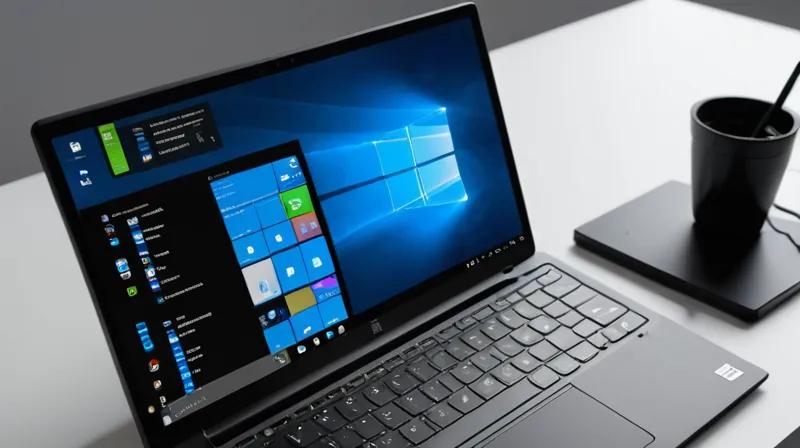
After completion, you should see the Windows 11 desktop with the new Start menu and interface.
Step 7: Verify Windows 11 Installation
Why: Confirming the upgrade worked correctly
Check that you're running Windows 11 by:
winver
Or go to Settings > System > About and verify the Windows version. Additionally, verify that your system still meets all Windows 11 requirements by running:
systeminfo | findstr /C:"System Type"
systeminfo | findstr /C:"TPM"
Summary
This tutorial provided a method to upgrade Windows 10 to Windows 11 by bypassing compatibility checks through registry modifications. While Microsoft's official upgrade path requires specific hardware, this workaround allows users with compatible hardware to take advantage of Windows 11 features. Remember that this method works best on devices that already meet the minimum requirements but are incorrectly flagged by compatibility checks. Always backup important data before attempting upgrades, and note that this approach may not work on all devices, particularly those with very old hardware or where the TPM is disabled.